
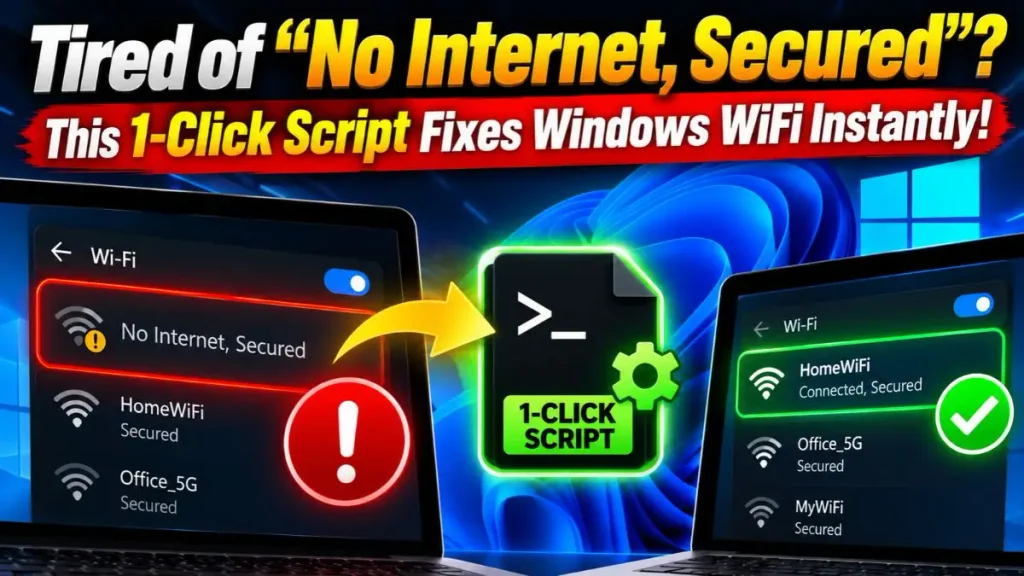
Friends, imagine you’re in a very important client meeting, or about to submit a new project before the deadline, and suddenly a dreaded yellow triangle appears on the WiFi icon in your taskbar, showing an error like “No Internet, Secured” or “Connected, No Internet.” This error is nothing short of a nightmare for all Windows users. Every time this glitch happens, restarting the router or opening CMD (Command Prompt) and typing long codes to get the internet back is extremely irritating and time-consuming. But what if I told you that you could eliminate this frustration for good? What if with just a double-click your PC could automatically diagnose and repair all your network issues?
In today’s in-depth guide, I will teach you how to create a custom Network Fixer Script that will reset your network adapters with a single click. If you are tired of searching the internet for “fix for Wi-Fi disconnecting in Windows 11,” then this article is a permanent solution for you.
Why Does Your Windows PC Lose Internet? (Main Causes)
Before jumping directly to the script and fix, as a tech-savvy user we should understand why a perfectly fine internet connection suddenly drops. When you connect to the internet, thousands of tiny network requests are processed in the background. In this network chain, there are mainly four culprits that break the connection:
- Corrupted DNS Cache (DNS Glitches): Friends, just as your Chrome browser has a history where website data is saved, your Windows PC also maintains a “DNS Cache.” This cache remembers IP addresses. But when this cache becomes overfilled or corrupted, the system can’t establish new connections and you see the “Connected, No Internet” error.
- IP Address Conflicts: Many times your WiFi router mistakenly assigns the same IP address to two different devices (like a laptop and a smartphone). When this happens, Windows immediately drops the network connection to prevent a data conflict. In such cases, even the default Windows network troubleshooter fails.
- Corrupted TCP/IP Stack: TCP/IP (Transmission Control Protocol/Internet Protocol) is your system’s core network stack that handles internet communication. Third-party VPNs, heavy antivirus software, or new Windows updates can corrupt this stack, completely blocking internet access.
- Outdated network drivers: If the network adapter (whether it’s Intel or Realtek) isn’t properly syncing with your hardware in the background, WiFi signals will continuously drop.
Now that we’ve identified the root cause, we know we need to reset these three or four things. And our automated Windows network repair script does exactly that in one second.
Also Check This: 1-Click Windows 11 Debloat Script: Remove Bloatware & Boost Speed
How to Use the Downloaded Network Fixer Script Correctly?
Critical Note: Do not run this script by double-clicking it, otherwise you will get an “Access Denied” error on the screen! The script requires Admin rights to change the system’s internet settings and renew the IP address.
Follow these steps carefully to safely resolve the issue:
- Step 1: First, right-click on the downloaded ZIP file and extract it by selecting the ‘Extract Here’ or ‘Extract All’ option.
- Step 2: After extraction, right-click on the Network-Fixer.bat file and, most importantly, select “Run as Administrator.”
- Step 3: A small black Command Prompt window will appear on the screen, which will clear your old, corrupt network cache within seconds.
- Step 4: As soon as the message “Network Reset Complete! Please RESTART your PC.” appears on the screen, press any key to close the window and be sure to restart your laptop or PC.
After restarting, your system will receive a fresh IP from the router, and that yellow triangle will be gone from the taskbar for good!
Disclaimer: The Windows Batch (.bat) script provided in this article has been personally tested and is 100% safe. However, before running any system-level script, make sure you don't have any important online work pending, because this script will reset your active connection. Always make manual changes in CMD or the Registry at your own risk.