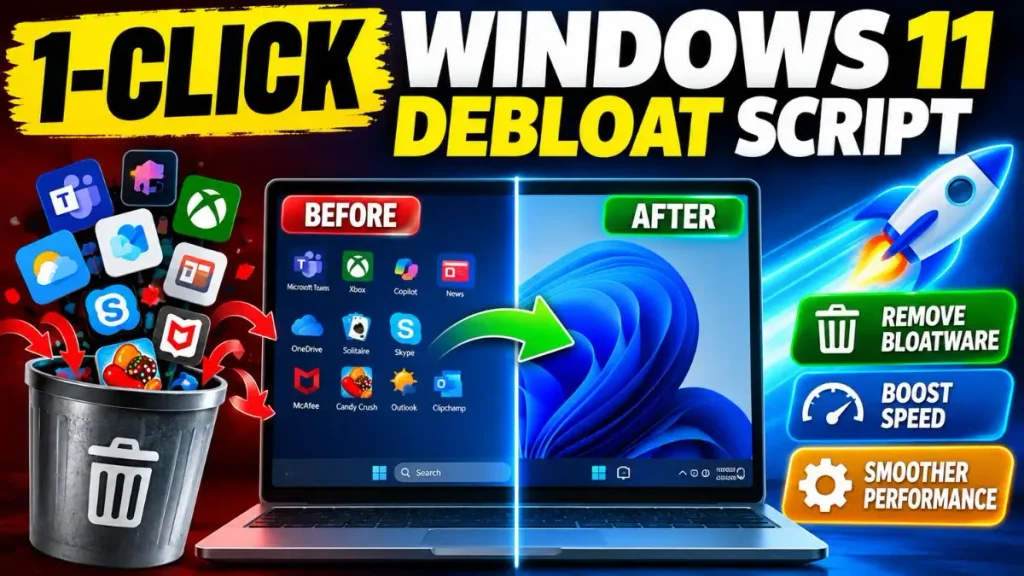
You bought a new Windows 11 laptop thinking it would run like a dream? But the reality is that the moment it boots up, the system starts hanging, the RAM shows as 60% full, and useless apps like TikTok, Instagram, and Facebook are running in the background. This annoying problem is called “Bloatware” in tech jargon. If you’re gaming, editing videos, or just want a smooth PC experience, this background data collection forces your system to underperform. Don’t worry! Today I’m giving you a 100% safe and tested Windows 11 bloatware removal BAT file that will make your PC super fast and clean.
What is Windows 11 Bloatware and Why is it Slowing You Down?
When you buy a new laptop or do a fresh install of Windows 11, Microsoft pre-installs many things on it by default that a normal user never needs.
- Pre-installed Third-Party Apps: Spotify, TikTok, Twitter, Candy Crush. These apps not only take up storage but also consume your RAM by running background processes.
- Aggressive Telemetry: Microsoft continuously collects your data in the background (typing habits, app usage) and sends it to its servers. This wastes your CPU and internet bandwidth.
- Bing Search Integration: When you type anything in the Start menu, instead of showing local files, Windows starts loading Bing search results from the internet, which makes the Start Menu slow.
If you try to disable these processes manually, it will take hours, not to mention the risk of making a mistake in the registry. That’s why a Windows 11 debloat script is the smartest solution.
Also Check: 1-Click Disk Junk Cleanup Batch Script: Clear Deleted Disk Junk & Apps Temp Files
How to Safely Use the Win11Debloater Script
Using this script is very easy. Whether you have manually saved the code or downloaded the ZIP file we provided, follow these steps carefully:
- Download the Script: If you have downloaded the ZIP file, right-click on it and extract (unzip) it.
- Run as Administrator: Inside the extracted folder, you will find the .bat script file. Right-click on that file and select “Run as Administrator.” (Note: Without admin permissions, this script cannot make changes to the registry).
- Wait for the Process: A black CMD (Command Prompt) window will open. The script will automatically clean the registry and remove bloatware in the background. This will only take 1-2 minutes.
- Restart PC: As soon as “Process Completed Successfully” appears on the screen, press any key to close the window and immediately restart your PC so that all the registry changes can be applied.
Disclaimer: Before making any changes to the Windows Registry, always create a System Restore Point. This script is 100% safe and tested, but every PC's configuration is different. Use these CMD commands and registry tweaks at your own risk. @TechWaleJha will not be held responsible for any hardware or data loss.