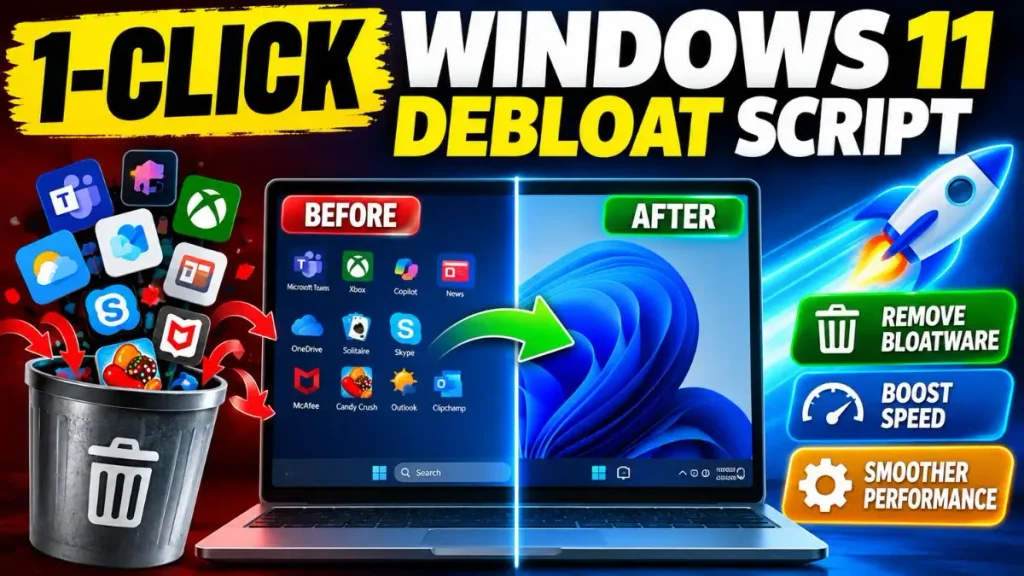
Have you recently bought a new Windows 11 laptop or freshly installed the OS? A brand-new PC should be fast, but when you see TikTok, Instagram, and unnecessary Microsoft services eating up your RAM and CPU in the background, it’s only natural to feel frustrated. This “bloatware” slows down your PC and leaks your data. But don’t worry! Today I’m giving you a 100% safe, tested Windows 11 debloat script (BAT file) that, with just one click, will clear all the junk from your PC and boost its speed by 2x. Let’s see how!
Why is Your New Windows 11 PC So Slow? (The Root Cause)
In an attempt to make Microsoft Windows 11 modern and feature-rich, it has become a rather heavy OS. For a normal user who just wants to smoothly multitask, game, or edit videos, these background processes are of no use:
- Pre-Installed Third-Party Apps (Bloatware): New PCs come with apps like TikTok, Facebook, Spotify, and Candy Crush pre-installed. These consume both your storage and background data.
- Constant Data Collection (Telemetry): Microsoft continuously sends your system usage data to its servers in the background. This process is called Telemetry, which not only poses a threat to your privacy but also keeps the CPU constantly busy.
- Bing Search in Start Menu: When you search for a local file in the Start Menu, Windows forcibly displays Bing web results from the internet, which causes the Start Menu to lag (hang).
How to Use the Win11Debloater Tool (Step-by-Step)
If you don’t want to create the script yourself, you can download our ready-made zip file from the link below. The process is very easy:
- Download The Script: Download the Win11Debloater.zip file from our website.
- Extract the File: After the download is complete, right-click on the ZIP file and click “Extract All.” Inside the folder, you will find the .bat script file.
- Run as Administrator (Crucial Step): Right-click on the .bat file and select “Run as Administrator.” (Note: Without admin permissions, the script cannot make changes to the registry).
- Wait for the Process: A black CMD (Command Prompt) window will open. The script will automatically start its work. This process may take 1-2 minutes.
- Restart PC: As soon as you see “Process Completed Successfully” on the screen, close the CMD window and be sure to restart your laptop/PC. All the registry tweaks will only take effect after the restart.
Disclaimer: Changes made to the Windows Registry or in the Command Prompt (CMD) directly affect the operating system. The script provided in this article is 100% tested and safe, but still, be sure to create a System Restore Point before running any custom tweak. Proceed at your own risk.