
Does your PC suddenly display a sad smiley 🙁 on a Blue Screen of Death (BSOD)? Or as soon as you launch your favorite video editor or game, does an annoying pop-up appear on the screen—“vcruntime140.dll is missing”? If your system keeps auto-restarting or freezing, there’s no need to panic. These errors look very scary, but their solution is extremely simple. In this detailed guide, I’ll give you a powerful 1-Click Windows Auto Repair Script that will automatically fix all the corrupted files on your system—and best of all, not a single one of your important documents or data will be deleted!
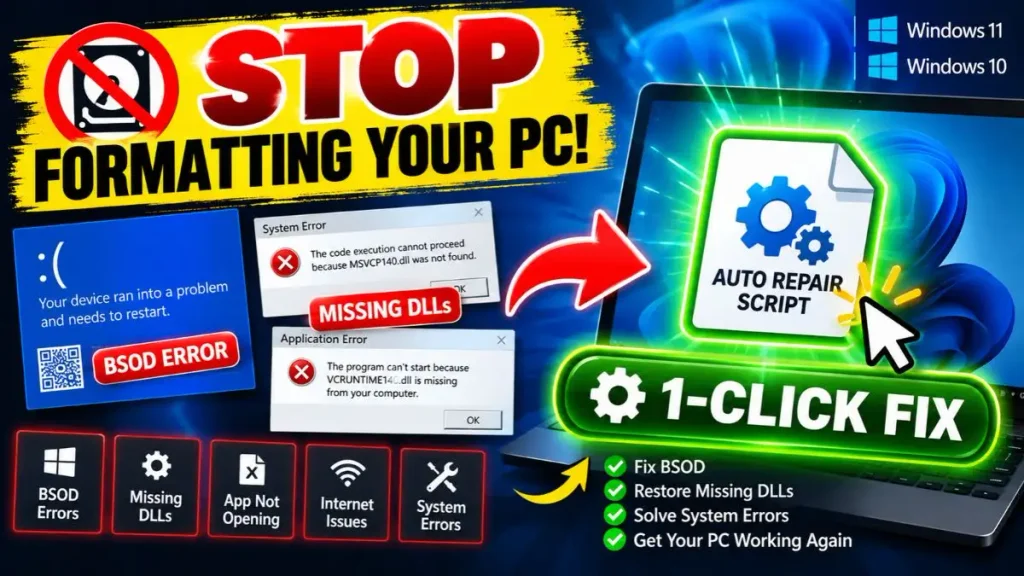
Common BSOD & DLL Errors This Script Can Fix
Before fixing this problem, let’s see which popular errors this script targets and bypasses:
- CRITICAL_PROCESS_DIED or SYSTEM_THREAD_EXCEPTION_NOT_HANDLED
- Missing system files such as msvcp140.dll, vcruntime140.dll, or d3dx9_43.dll
- Sudden Windows Explorer crashes (Screen freezing).
- Windows Update Error Codes (such as 0x800f081f).
Also Check This: 1-Click Windows Recovery Repair Toolkit Script (22-in-1 Tool)
Why Do Windows System Files Get Corrupted?
When the internal system files of the Windows OS (the System32 folder) become corrupted, our PC can’t boot properly. But why does this corruption happen in the first place? There are 3 main technical reasons for this:
- Sudden Power Loss or Battery Drain: If you’re doing heavy editing on a laptop and the battery suddenly goes to 0% and the system shuts down, the Windows files that are being written in the background get corrupted in mid-process.
- Malware or Ransomware Attacks: Untrusted software downloaded from the internet brings viruses into your PC that directly modify or delete essential .dll files.
- Failed Windows Updates: If the internet connection is lost or the PC is force-restarted while Microsoft’s background updates are in progress, files get installed incompletely, which makes the system unstable.
Stop Formatting Your PC! (The Rookie Mistake)
Often, PC users get so frustrated in a situation that they immediately decide to format (reset) Windows. Friends, formatting your PC should always be your absolute last resort!
Formatting erases all the data on your C: drive, your installed heavy software, and your games, all of it forever. Think about it: if one of your car’s tires gets a puncture, would you replace the whole car? Absolutely not! If the problem is just with some corrupt files, we’ll smartly replace only those files, not wipe the entire system.
Also Check This: 1-Click PC Speedup Script: Fix Slow Laptop & 100% Disk Usage Instantly
The Magic Solution: How the Auto-Repair Script Works
A pro tech-user always uses smart tools. To safely solve this problem, we will use a very advanced automated Windows repair tool by TechWaleJha.
Without manually typing commands in the command prompt for hours, this .bat script runs Microsoft’s two most powerful diagnostic engines together in the background:
- SFC (System File Checker): This engine first deeply scans your hard drive and restores minor corrupted Windows files and missing DLLs from the local cache.
- DISM (Deployment Image Servicing and Management): If the corruption is so deep that the file isn’t even present on the local PC, the DISM engine connects directly to Microsoft’s official Windows Update servers and downloads a brand-new, fresh copy of those files to replace them in the background.
How to Run the Script Flawlessly (Step-by-Step)
Since this script interacts with Windows’ deepest core files, not a single step should be missed when running it. Carefully follow these steps to bring your dead PC back to life:
- Step 1: Place the downloaded Auto-Repair-Tool-TechWaleJha.zip file on your Desktop. Right-click on it and click “Extract Here”.
- Step 2 (The Golden Rule): In the unzipped folder, locate the Auto-Repair.bat file. Right-click on it and always select “Run as Administrator.” Without this, the script will fail.
- Step 3 (Internet Connection): Keep your WiFi or Ethernet cable ON. As I mentioned, the DISM engine requires a high-speed active internet connection to fetch files from Microsoft servers.
- Step 4: A black CMD screen will open. Depending on your PC’s RAM, SSD/HDD speed, and internet bandwidth, this process can take 15 to 25 minutes. The scan percentage (%) will increase slowly. Strict Warning: Do not close (X) this window under any circumstances while the scan is in progress, otherwise Windows may crash severely.
- Step 5: When you see “SUCCESS: Auto-Repair is 100% Complete!” in green on the screen, close the window and be sure to restart your PC.
Your PC will now run fast, smooth, and 100% error-free like it used to!
Also Check This: 1-Click Windows Update Reset Script: Fix Stuck Updates Instantly
Download the 1-Click Auto Repair Script (Secure ZIP Package)
If you want to avoid coding and typing errors, I have safely packaged this script into a ready-to-use tool. I have uploaded this verified and manually tested ZIP package to my official Superprofile digital distribution page. You can download it from the link below without any risk.
(Note: This tool is perfectly compatible with the latest Windows 11 and all Windows 10 builds.)
Conclusion
So friends, this is the smartest and most professional way to resolve any frustrating Blue Screen of Death or Missing DLL error with zero data loss. Before you straight-up format your system, be sure to run this 1-Click Auto Repair script first—it could save you hours of work!
What specific DLL error or BSOD code was your PC showing that this tool fixed? Be sure to share your problem and experience in the comments below—I read every comment!
Disclaimer: Friends, all the CMD commands and Batch (.bat) scripts provided in this article have been personally tested and are completely safe since they are officially part of the Microsoft ecosystem. However, @TechWaleJha or this website will not be held responsible for any unexpected power cut or hardware failure while repairing system files. Please execute the script only by selecting “Run as Administrator” strictly according to the provided steps. Any manual system modifications are at your own risk.