
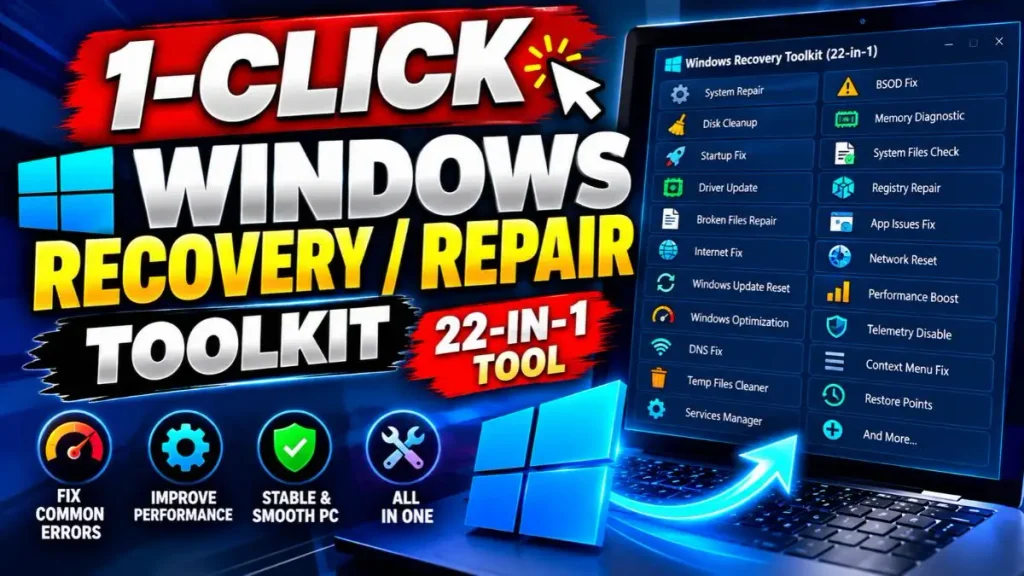
Does your PC suddenly hang while running? Are you getting Blue Screen of Death (BSOD) errors, unable to connect to the internet, or have system files become corrupted? For new users and even techies, manually typing complex CMD commands like sfc /scannow, DISM, or ipconfig /flushdns every time is very difficult and time-consuming. To eliminate this problem once and for all, I’ve designed a custom Windows Recovery Repair Toolkit batch script. This small file contains 22 of the most powerful troubleshooting tools that automatically deep-clean and repair your system in the background with just the press of a single key!
What features are included in this Toolkit Script?
This master script contains 22 different diagnostics and repair tools to fix the system. Let’s understand them by their functions in the following categories:
1. System Scan & Repair (Options 2 to 6 & 19)
This section targets corrupt Windows files. It includes the SFC (System File Checker) and DISM (Deployment Image Servicing and Management) commands, which automatically scan for and replace corrupt files from Microsoft’s servers in the background. It also includes support for CHKDSK, which fixes bad sectors and errors on your hard drive (HDD/SSD).
2. Network & Internet Fixes (Options 8 to 10 & 22)
If your WiFi keeps disconnecting or showing ‘No Internet’, these options work like magic. They include Flush DNS, Winsock Reset, and TCP/IP reset, which completely reset your PC’s network stack to its factory settings.
3. System Diagnostics & Health (Options 1, 7, 11, 12)
These options perform a full checkup of your PC. Whether it’s pulling Advanced System Info, checking the health of your C: Drive, or generating a ‘Battery Health Report’ for an old laptop, it’s all done with a single click.
4. Cleanup & Optimization (Options 20 & 21)
If your PC is running slow, it’s important to clean Temp files, Prefetch, and junk all at once. Also, if the screen freezes, this tool refreshes Windows Explorer without restarting the PC.
Line-by-Line Code Breakdown (The Tech Edge)
People always prefer a deep technical breakdown. Let’s understand the logic of this code:
- net session >nul 2>&1: This is an advanced registry/session check. It ensures that the command prompt is running at Admin level.
- sfc /scannow: This is Microsoft’s official command that verifies the C:\Windows\System32 directory.
- del /q/f/s %TEMP%\*: This is a silent delete command. /q (quiet), /f (force delete read-only files), and /s (sub-directories) clear junk without asking you ‘Yes/No’.
How to Use This Script Correctly?
This script will only be as effective as you make it. The professional way to use this tool is:
1. Run as Administrator (Mandatory)
Because commands like SFC, DISM, and Winsock Reset need to make changes directly to your C: drive (system files) and network registry, a normal double-click won’t work. Always right-click your RecoveryToolkit.bat file and select “Run as Administrator.”
2. In-built Safety Check
Let’s say you forgot to give it admin rights. Don’t worry! I’ve built a safety lock right at the start of the code. If you double-click it without admin rights, the screen will turn red, an error message will pop up, and the script will shut itself down to prevent any incorrect system execution.
3. Using the Interactive Menu
When the script runs, you will see a neat green and black menu with numbers from 1 to 22. If your internet isn’t working, simply press 9 on the keyboard and press Enter. The script will do its work and bring you back to the main menu. It’s that simple!
Pro Tip: If you don’t want to code this script yourself, you can download its fully built ZIP package directly from my official web store, where I’ve safely packaged this 22-in-1 toolkit.
Download the 1-Click Windows Recovery Repair Toolkit Script (ZIP File)
If you don’t want to deal with the hassle of coding and errors and want an error-free, ready-made tool, then I have already prepared a file for you. You can download it completely free from the link provided below.
I have packed this WiFi fixer BAT file in ZIP format so that Google Chrome, Microsoft Edge, or Windows Defender don’t block it as a “false-positive” malware. This file is 100% safe, tested, and virus-free.
Conclusion
Friends, I'm completely confident that this 22-in-1 Windows Recovery Repair Toolkit script will take your PC maintenance to a whole new level. There's no longer any need to search for and type commands on Google for every error. Just one click, and the problem is solved!
Disclaimer: Friends, the Batch (.bat) script provided in this article makes system-level changes. I have personally tested it, but please use it at your own risk. Always back up your important data before running any script. @TechWaleJha will not be held responsible for any unexpected system errors. Always execute the script in ‘Run as Administrator’ mode.