
Do you want to prevent unauthorized USB storage access on your Windows PC or laptop? If someone can easily connect a pen drive to your computer and copy your personal files, it may create a serious privacy and security concern.
To help manage USB storage access, we have created a simple USB Storage Lock Tool for Windows 10 and Windows 11. This free tool allows you to enable or disable standard Windows USB mass-storage functionality using a simple BAT file.
The best part? You don’t need to install any third-party software. Simply run the BAT file, enter your password, and choose whether you want to lock or unlock USB storage devices.
In this guide, you will learn what this tool does, its features, benefits, how to use it, and how to download it for free.
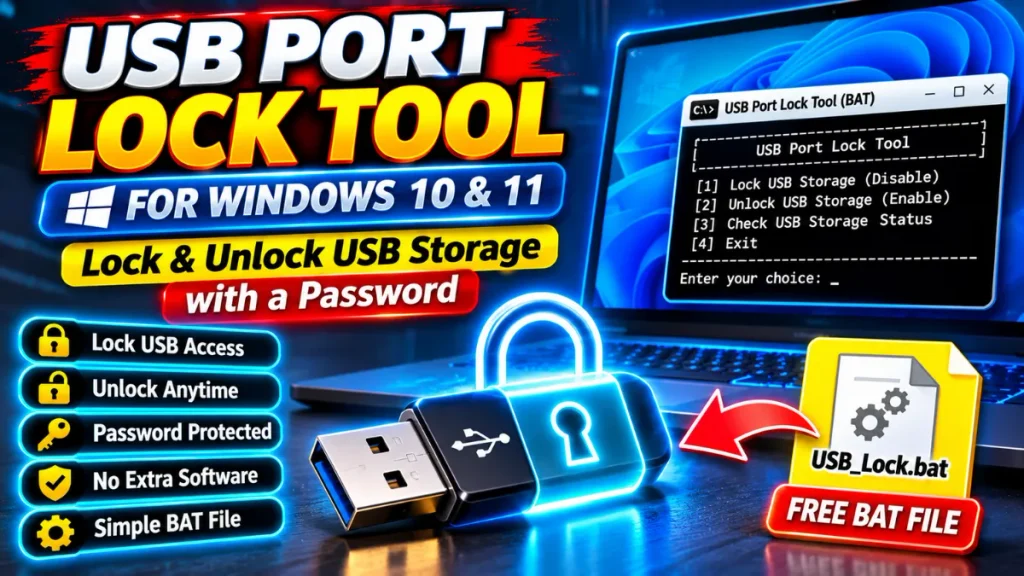
What Is the USB Storage Lock Tool?
USB Storage Lock Tool is a simple Windows batch file designed to control standard USB mass-storage functionality through the Windows Registry.
It uses the USBSTOR registry setting to enable or disable USB storage device support.
For example, when you select the Lock option, the tool changes the USBSTOR registry value from 3 to 4. This disables the standard USB mass-storage driver from being loaded.
Similarly, when you select Unlock, it changes the value back from 4 to 3, allowing USB storage functionality to work again.
The tool also includes password verification, a USB status checker, and a simple menu-based interface.
Key Features of USB Storage Lock Tool
Here are some useful features included in this free BAT file:
1. Password-Protected Access
The tool asks for a password before performing USB Lock or Unlock operations. This provides a basic password check before someone uses the tool.
2. Lock USB Storage Devices
With just one option, you can disable standard USB mass-storage functionality on your Windows PC.
This can help restrict the use of supported USB pen drives and external storage devices.
3. Unlock USB Storage Anytime
When you need to use a pen drive again, simply select the Unlock option and enter the correct password.
4. Check USB Storage Status
Not sure whether USB storage is enabled or disabled? Use the built-in Status Check option to view the current USBSTOR registry setting.
5. No Third-Party Software Required
You don’t need to install additional applications. The tool uses built-in Windows commands and registry functionality.
6. Simple Menu-Based Interface
The tool comes with four easy-to-understand options:
- Lock USB Storage
- Unlock USB Storage
- Check USB Status
- Exit
7. Compatible with Windows 10 & Windows 11
The BAT file is designed for Windows 10 and Windows 11 systems that support the standard USBSTOR registry setting.
What Does This USB Lock Tool Actually Do?
This tool works by modifying a Windows Registry value.
It uses the following registry location: HKEY_LOCAL_MACHINE\SYSTEM\CurrentControlSet\Services\USBSTOR
The registry value named Start controls the USBSTOR service configuration.
Here is how the two main operations work:
| Operation | Registry Value | Result |
|---|---|---|
| USB Lock | 4 | USBSTOR disabled |
| USB Unlock | 3 | USBSTOR enabled |
When you select the Lock option, the BAT file runs a registry command that changes the Start value to 4.
When you select Unlock, it restores the value to 3.
Important: This controls standard Windows USB mass-storage functionality. It does not disable every physical USB port or block all USB devices. USB keyboards, mice, and other USB peripherals are not the target of this setting.
Benefits of Using This USB Storage Lock Tool
Here are some reasons why you may find this tool useful:
- Better USB Access Control: Helps restrict standard USB storage usage when you don’t need it.
- No Software Installation: Works through a simple Windows BAT file.
- Easy to Operate: You can lock and unlock USB storage through a menu.
- Quick Status Checking: Check the current USBSTOR configuration without manually opening Registry Editor.
- Useful for Shared PCs: Can help manage USB storage access on computers used by multiple people.
- Free to Use: No subscription or paid software is required.
How to Use USB Storage Lock Tool in Windows 10 & 11
Follow these simple steps to set up and use the USB Lock BAT file.
Step 1: Create a BAT File
- First, open Notepad on your Windows computer.
- Copy the complete USB Storage Lock Tool code provided below and paste it into Notepad.
Step 2: Set Your Password
- At the beginning of the code, find this line:
set "PASSWORD=1234" - Replace
1234with your preferred password. - For example:
set "PASSWORD=MyUSB2026"and Save your changes.
Step 3: Save the File as a BAT File
Now follow these steps:
- Click File in Notepad.
- Select Save As.
- Enter the file name as
USB-Lock-Tool.bat. - Select All Files under Save as type.
- Choose your Desktop as the save location.
- Click Save.
Your USB Storage Lock BAT file is now ready.
Step 4: Run the BAT File as Administrator
- Locate the saved BAT file on your Desktop.
- Right-click the file and select Run as administrator.
- Windows may display a User Account Control (UAC) permission prompt. Select Yes if you want to continue.
Step 5: Enter Your Password
- The tool will open a command prompt window and ask you to enter your security password.
- Enter the password you configured in the code.
- If the password is correct, you can access the tool’s menu.
Step 6: Choose Your Desired Option
You will see four options on the screen:
- Option 1 – Lock USB Storage
- Select this option to disable standard USB mass-storage functionality.
- Option 2 – Unlock USB Storage
- Select this option to enable standard USB mass-storage functionality again.
- Option 3 – Check USB Status
- Select this option to check whether the USBSTOR registry setting is currently locked or unlocked.
- Option 4 – Exit
- Select this option to close the tool.
That’s it! You can now manage standard USB storage access using a simple BAT file.
USB Storage Lock Tool – Complete BAT File Code
If you want to create this tool manually, copy the complete code below and paste it into Notepad.
Important: Change the default password before using the tool.
Copy the Complete Code
USB Storage Lock Tool
Windows 10 & Windows 11 | BAT Script
After copying the code, follow the setup instructions mentioned above to save it as USB-Lock-Tool.bat.
Download USB Storage Lock Tool in One Click
- Don’t want to copy and paste the complete code manually? No problem!
- You can download the ready-made USB Storage Lock Tool directly using the ZIP file below.
- The ZIP package makes it easier to get started without manually creating the BAT file.
After downloading:
- Extract the ZIP file to your computer.
- Locate the USB Lock Tool BAT file.
- Open it in Notepad and change the default password.
- Save the file.
- Right-click and select Run as administrator.
- Enter your password and start using the tool.
Note: The password in the included BAT file is visible to anyone who can read or edit the file. This is a basic convenience feature, not strong security against someone with administrator access.
Important Things You Should Know Before Using This Tool
Before using the USB Storage Lock Tool, keep these points in mind:
- Administrator privileges are required to modify the relevant registry setting.
- The tool controls standard Windows USB mass-storage functionality, not all USB ports.
- Already connected storage devices may need to be safely ejected and reconnected, or Windows may require a restart.
- The password is stored in plain text inside the BAT file.
- Anyone with administrator access can modify the registry directly and bypass this basic password check.
- If you use a work-managed or organization-managed computer, check its IT policies before changing registry settings.
- Note your original registry configuration before making changes. The Unlock option sets the standard USBSTOR Start value to 3, which may not match a previously customized configuration.
Frequently Asked Questions (FAQs)
1. Is the USB Storage Lock Tool free?
Yes. The BAT file is free to use. You can create it manually using the provided code or download the ready-made ZIP package.
2. Does this tool work on Windows 10 and Windows 11?
The tool is designed for Windows 10 and Windows 11 systems that use the standard USBSTOR service configuration.
3. Will this tool disable my USB keyboard and mouse?
No. It targets the standard USB mass-storage driver, which is commonly used by pen drives and external USB storage devices.
4. Do I need administrator permission to run this tool?
Yes. Administrator privileges are required because the tool modifies a registry setting under HKEY_LOCAL_MACHINE.
5. Can I unlock USB storage whenever I want?
Yes. Open the tool, select Option 2, and enter the correct password to restore the standard USBSTOR setting to 3.
6. Does this tool provide complete USB security?
No. It is a basic USB storage access-control utility, not a complete security solution. It does not block every possible storage interface or prevent an administrator from changing the registry directly.
Conclusion
The USB Storage Lock Tool is a simple and free Windows utility for managing standard USB mass-storage access without installing additional software.
With its password check, Lock, Unlock, and Status Check options, it provides an easy way to manage USB storage functionality on your Windows 10 or Windows 11 computer.
If you frequently share your PC with others or simply want more control over USB storage usage, this small BAT file can be a useful addition to your Windows toolkit.
Download the ZIP file, set your own password, and try the USB Storage Lock Tool today!
For more useful Windows tricks, free tools, CMD scripts, and PC tutorials, keep visiting Tech Wale Jha.