
Is your Windows PC running slower than usual? Does your computer take too long to open applications, or are you running out of storage space? One possible reason is the accumulation of temporary files and unnecessary data on your system.
Windows automatically creates temporary files while running applications, installing updates, browsing the internet, and performing everyday tasks. Over time, some of these files may occupy unnecessary disk space.
The good news is that you don’t always need expensive PC cleaning software to perform basic cleanup tasks.
In this guide, you can download a free Windows PC Junk Cleaner BAT file created by Tech Wale Jha. This simple batch-file utility helps you clean temporary files, remove unnecessary Windows Temp data, empty the Recycle Bin with confirmation, and check your available disk storage.
Best of all, you don’t need advanced technical knowledge to use it.
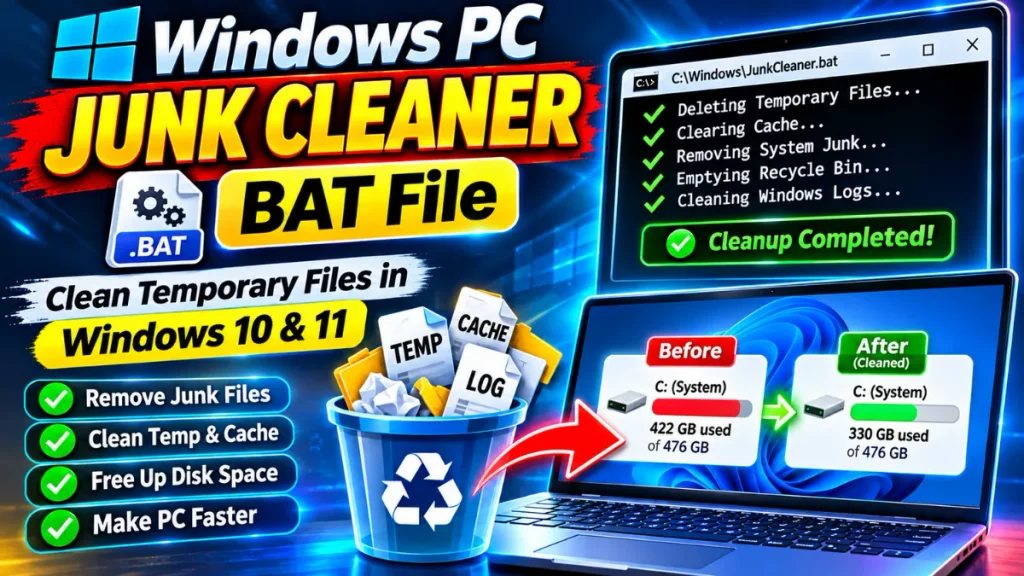
Download Windows PC Junk Cleaner BAT File
Get the free cleanup utility and follow the instructions below to use it on your Windows computer.
Tool Name: Tech Wale Jha PC Junk Cleaner
Supported Windows Versions: Windows 10 and Windows 11
File Format: BAT (Batch File)
Price: Free
Note: Review the script before running it. Always download executable scripts from sources you trust. Test it on your own computer before sharing or deploying it on other systems.
What Is a Windows PC Junk Cleaner BAT File?
A BAT file, also known as a batch file, is a Windows script that executes a series of commands automatically through Command Prompt.
Instead of manually opening multiple Windows folders and deleting temporary files one by one, a cleanup batch file can automate selected maintenance tasks.
The Tech Wale Jha PC Junk Cleaner is designed to provide a simple menu-based interface. You can choose the cleanup operation you want to perform.
It focuses on common temporary-file cleanup tasks rather than aggressively deleting system files or modifying important Windows settings.
Features of Tech Wale Jha PC Junk Cleaner
Here are the main features included in this free Windows cleanup tool.
1. Quick User Temp Cleanup
Windows applications create temporary files while performing different tasks. Some temporary files may remain even after an application is closed.
The Quick Cleanup option helps remove temporary files from your Windows user Temp folder.
2. Windows Temp Folder Cleanup
Windows also stores temporary data in its system-level Temp folder.
This tool provides a separate option to clean that location. Administrator permission may be required.
Some files may be in use by Windows or running applications. Those files are skipped rather than forcibly removed.
3. Empty Recycle Bin
Deleting a file normally moves it to the Recycle Bin instead of immediately removing it permanently.
The Recycle Bin cleanup option allows you to empty it through PowerShell after a separate confirmation.
Important: Once the Recycle Bin is emptied, recovering those files may be difficult or impossible. Check its contents before confirming.
4. Storage Overview
Want to know how much free storage space is available on your computer?
The Storage Overview option displays information about your fixed drives, including available free space.
This can help you identify which drive may need additional storage cleanup.
5. Safe Cleanup Option
The Safe Cleanup option combines the available temporary-file cleanup tasks into one operation.
It attempts to clean user temporary files and, when running with administrator permission, Windows temporary files as well.
It does not intentionally target your personal Downloads, Documents, or other personal folders.
How to Use the PC Junk Cleaner BAT File
Follow these simple steps to run the cleanup utility on your Windows 10 or Windows 11 PC.
Step 1: Download the BAT File
Click the download link provided above.
Save the file to a location you can easily access, such as your Desktop or Downloads folder.
Step 2: Run the BAT File
Locate the downloaded file named:
Tech_Wale_Jha_PC_Junk_Cleaner.bat
Right-click the file and select Run as administrator if you want to use the Windows Temp cleanup option.
Only run the file if you trust its source and have reviewed its commands.
Step 3: Select Your Preferred Cleanup Option
After opening the file, you will see a menu with different cleanup options.
The menu includes:
- Quick Cleanup – User Temp Files
- Windows Temp Cleanup
- Empty Recycle Bin
- Storage Overview
- Safe Cleanup
- Exit
Enter the number of the operation you want to perform and press Enter.
Step 4: Confirm the Cleanup
Some operations may ask for confirmation before proceeding.
Read the confirmation message carefully before continuing, especially when emptying the Recycle Bin.
Step 5: Check the Cleanup Log
The utility creates a log file at:
%LOCALAPPDATA%\TechWaleJha\JunkCleaner-Log.txt
You can open this file to review the cleanup activity and any files that Windows could not remove.
What Files Does This BAT File Clean?
Understanding what a cleanup tool deletes is important before running it.
Here is a general overview of the operations included in this utility.
| Cleanup Location | Purpose |
|---|---|
| User Temp folder | Removes temporary files belonging to the current Windows user |
| Windows Temp folder | Attempts to remove system-level temporary files |
| Recycle Bin | Empties deleted files after confirmation |
| Fixed drives | Displays available storage information |
What Does This Tool NOT Delete?
To reduce the risk of accidental data loss, this utility does not intentionally clean the following locations:
- Downloads folder
- Documents folder
- Desktop files
- Personal photos and videos
- Browser profiles and saved passwords
- Windows Prefetch folder
- Windows Update components
This is a focused temporary-file cleanup utility, not a complete Windows optimization or malware removal tool.
Does Cleaning Junk Files Make Your PC Faster?
Cleaning temporary files can free up disk space, particularly if your Temp folders contain a large amount of unnecessary data.
However, deleting temporary files does not guarantee a noticeable performance improvement.
If your computer is slow because of insufficient RAM, an old hard drive, high background CPU usage, malware, or startup applications, you may need additional troubleshooting.
For better results, combine regular temporary-file cleanup with other Windows maintenance practices:
- Disable unnecessary startup applications.
- Keep Windows and device drivers updated.
- Scan your computer using Windows Security.
- Maintain sufficient free space on your system drive.
- Check Task Manager for applications consuming excessive CPU or RAM.
- Consider upgrading from an HDD to an SSD if your computer supports it.
Is It Safe to Use a BAT File to Clean Windows?
A batch file can be safe when its commands are properly written and understood. However, not every BAT file available online is trustworthy.
Some scripts may contain commands that delete important files, modify the Windows Registry, disable system services, or change security settings.
Before running any batch file:
- Download it only from a trusted source.
- Open it with Notepad and review the commands.
- Avoid running unknown scripts with administrator privileges.
- Back up important data before performing system maintenance.
- Never ignore Windows Security warnings without understanding why they appeared.
The Tech Wale Jha PC Junk Cleaner is designed for selected temporary-file cleanup operations. Nevertheless, no cleanup script should be considered completely risk-free.
Frequently Asked Questions (FAQs)
1. Is the Windows PC Junk Cleaner BAT file free?
Yes. The Tech Wale Jha PC Junk Cleaner is provided as a free Windows batch-file utility.
2. Does this BAT file work on Windows 11?
The utility is designed for Windows 10 and Windows 11. Some operations may behave differently depending on Windows permissions and system configuration.
3. Do I need administrator permission to run this tool?
Administrator permission is recommended for Windows Temp cleanup. Some other options can work without administrator privileges.
4. Will this BAT file delete my personal files?
The utility is designed to target temporary-file locations and the Recycle Bin only when you explicitly select that option. It does not intentionally target your personal Downloads, Documents, or Desktop folders.
Always review the script and confirm each operation before running it.
5. Can deleting temporary files damage Windows?
Removing temporary files is a common maintenance task. However, files currently being used by Windows or applications may not be safe to remove. The utility skips files that cannot be deleted.
6. Will this tool increase my PC speed?
It may free up disk space, but it cannot guarantee faster performance. Other hardware or software issues may be responsible for a slow computer.
7. Where can I find the cleanup log?
You can find the log at:
%LOCALAPPDATA%\TechWaleJha\JunkCleaner-Log.txt
Paste this path into the Windows File Explorer address bar to open the relevant location.
Final Words
You don't always need expensive software to perform basic Windows maintenance.
The Tech Wale Jha PC Junk Cleaner BAT File offers a simple way to clean selected temporary-file locations, empty the Recycle Bin with confirmation, and check your available disk storage.
If you are looking for a straightforward Windows cleanup utility, download the free tool and follow the instructions in this guide.
For more useful Windows tutorials, troubleshooting guides, free tools, and technology tips, keep visiting TechWaleJha.com.
Tech Wale Jha – Making Technology Simple!