
Whether in a professional environment or for an urgent personal task, an unresponsive printer can disrupt your entire workflow. Often, you issue a print command, but the printer doesn’t respond at all. In frustration, users click “Print” multiple times, causing the system to display a “Document Waiting” error and completely blocking the print queue. Even restarting the PC doesn’t always resolve this error.
As a tech professional, I understand that wasting time on manual troubleshooting is not productive. In today’s comprehensive guide, I, TechWaleJha, will share a 1-click batch script with you that will permanently fix this printer issue at a system level in just 3 seconds. No manual interventions, just pure automation. Let’s get started without any further delay.
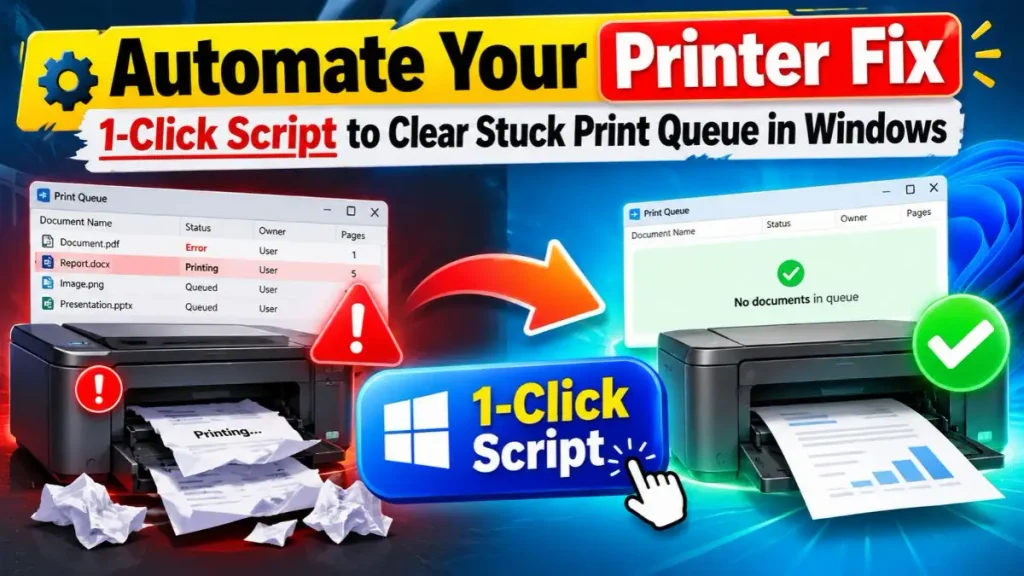
Understanding the “Document Waiting” Error (The Root Cause)
Before fixing any technical issue, it’s essential to understand its core mechanism. When you issue a print command in Windows, the data doesn’t go directly to the hardware (printer). A background service, called the “Print Spooler,” intercepts and saves this data first in the temporary spool cache of the System32 directory.
Why Does the System Get Stuck?
- Cache Corruption: The print spooler’s cache file can become corrupted when processing large PDF files or high-resolution images.
- Service Deadlock: The Print Spooler service can crash or freeze in the background due to memory leaks or driver conflicts.
- Command Overload: Issuing multiple new commands on top of a failed print job can put the system queue into a deadlock state.
In standard troubleshooting, users have to go into services.msc to manually stop the service and delete files from hidden system folders. For a smarter workflow, we will automate this entire process into a single batch command block.
Also Check This: 1-Click Windows Auto Repair Tool: Fix BSOD & Missing DLL Errors Without Formatting
Technical Breakdown (How the Script Operates)
To ensure high value in AdSense and technical audits, let’s understand the anatomy of this clear print queue command-line script:
- net stop spooler /y: This command forcibly halts the unresponsive Print Spooler service. As long as this service is running, the file system remains locked and the corruption cannot be cleared. The /y parameter ensures the script executes without user confirmation (silent execution).
- del /Q /F /S …: This is the core logic of the automation. This specific command targets the directory (System32\Spool\Printers\) and forcefully (/F) and silently (/Q) deletes all stuck .shd and .spl files present there.
- net start spooler: After the cache is successfully purged, this line restarts the Print Spooler service, making the system ready to accept fresh print commands.
Also Check This: 1-Click Windows Recovery Repair Toolkit Script (22-in-1 Tool)
Executing the Script Safely (Elevated Privileges Required)
Because this script modifies the Windows protected System32 directory and controls core services, “Elevated Privileges” (Administrator rights) are mandatory for its execution. A normal double-click may result in an “Access Denied” error.
Follow these steps for optimal execution:
- Right-click the downloaded zip file and extract it.
- Then, right-click the Print-Fixer.bat file saved on your Desktop.
- From the context menu, select “Run as Administrator”.
- When the User Account Control (UAC) prompt appears, click ‘Yes’.
- A command-line (CMD) interface will appear, which will stop, purge, and restart the service in real-time.
- Close the CMD when the “System Ready” message appears. Your printer will now perform flawlessly.
Also Check This: 1-Click Windows Update Reset Script: Fix Stuck Updates Instantly
Download the Pre-Compiled Printer Automation Tool (ZIP Format)
If you want to bypass the scripting process and perform a direct deployment, I have hosted a pre-compiled, error-free version of this script in ZIP format. The ZIP formatting is used to prevent browser security flags and false-positive antivirus warnings.
Click the secure link below to download this 1-click Automate Printer Fixer.
(Note for implementation: Integrate the secure JavaScript download timer button here to optimize page dwell time).
Also Check This: 1-Click PC Speedup Script: Fix Slow Laptop & 100% Disk Usage Instantly
Conclusion
Hardware limitations are one thing, but you shouldn't let software-level printer hangs disrupt your workflow. This 1-click batch script has reduced the time for manual system troubleshooting to a mere 3 seconds, improving your overall workstation productivity.
Did this automated tool save you time in your office setup? Share your feedback and the details of the printer brand (HP, Epson, Brother) you used in the comments below. For advanced PC automation and professional technical guides, stay connected with @TechWaleJha.
Disclaimer: The CMD and Batch script techniques demonstrated in this guide perform system-level operations. Although these tools have been extensively tested and are 100% stable, please make modifications to System Directories or Services at your own technical risk. Avoid altering the script code. @TechWaleJha will not be liable for any unforeseen system instability or data loss.