
Hello friends, I’m your very own TechWaleJha! Imagine you have to head out for an urgent meeting and need to print your flight ticket, or submit your college assignment. You click “Print,” and… nothing happens. The printer completely hangs after taking the command.
That’s when you start getting angry and end up hitting the “Print” button 5–6 more times, but instead of the page coming out, you see a “Document Waiting” error in the print queue. Even after restarting your PC, the old print commands stay stuck. This situation is enough to drive anyone crazy. But don’t worry! In today’s deep-dive guide, I’m going to give you a 1-click batch script that will fix this stubborn printer issue for good in just 3 seconds.
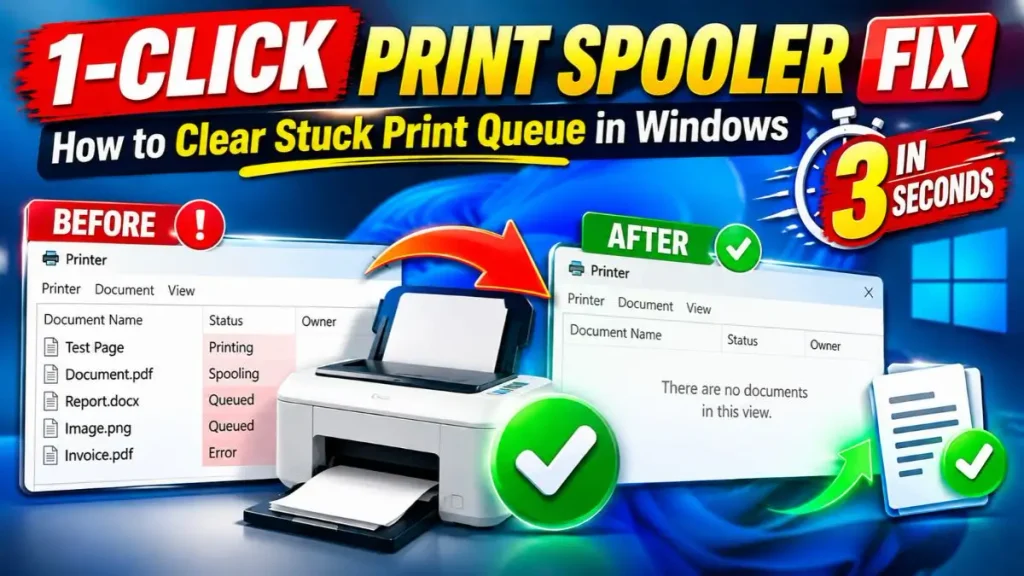
Why Does Your Printer Command Get Stuck? (The Root Cause)
A small background service called the “Print Spooler” acts as a bridge between your printer hardware and your Windows OS. When you print a file, Windows doesn’t send it directly to the printer. The file is first saved in a temporary spool cache inside the System32 folder.
Why does the problem occur?
- Corrupted Cache: Sometimes, when processing a large PDF or image file, the print spooler’s cache becomes corrupted.
- Service Crash: Due to RAM issues or driver conflicts, the Print Spooler service freezes (gets stuck) in the background.
- Queue Overload: When the first file gets stuck and you angrily hit print 10 more times, the queue gets blocked.
People use a manual method to fix this: they go to services.msc, find the service, stop it, manually navigate to the folder on the C: drive, and delete the files. This manual process is very time-consuming and boring. That’s why we’re automating the entire process with a single click to make your work even easier.
Also Check This: 1-Click Windows Auto Repair Tool: Fix BSOD & Missing DLL Errors Without Formatting
Line-by-Line Code Breakdown (How does it work?)
Let’s understand what this clear print queue CMD Windows 11 command does in the background:
- net stop spooler /y: This command first forcibly stops the Print Spooler service that’s hung. Until the service is stopped, Windows won’t let you delete those stuck files. /y automatically answers “Yes” to any prompt.
- del /Q /F /S …: This is the masterstroke of the script! This command goes directly to the hidden System32\Spool\Printers\ directory and silently (/Q) and forcefully (/F) deletes all the stuck .shd and .spl temporary files without asking you.
- net start spooler: After the cache is cleared, this command restarts the printer service so you can immediately issue a new print command.
How to Run the Script Safely for Expected Results
Because this script controls the system’s core services (System32 and Spooler), running it with a normal double-click will result in an “Access Denied” error.
The correct way to run it successfully is:
- First, click the download button below to download this zip file.
- Now, right-click the downloaded file and click “Extract” or “Extract Here”.
- Right-click the extracted Print-Fixer.bat file on your Desktop.
- From the menu, select “Run as Administrator.”
- A black CMD screen will open. You will see the service stop, the cache clear, and the service start again.
- “Successful” will appear on the screen.
- That’s it! Now give your new print command, and your printer will run like a charm.
Download the Ready-Made Printer Fix Tool (ZIP File)
If you want to avoid coding errors and need an error-free, ready-to-use file, I have packed the same script for you in ZIP format. (The ZIP format is used so that the Chrome browser doesn’t block this .bat file as a false-positive virus).
Click the button below. Our custom safe download timer will start, which will redirect you directly to the virus-free download link.
(Note for implementation: Integrate the custom JavaScript download timer here to ensure high dwell time for SEO).
Conclusion
Friends, hardware issues are one thing, but a printer hanging on the software side is no longer a problem for you. This one simple batch script has condensed hours of manual work into just 3 seconds.
Which printer of yours was hanging (HP, Canon, or Epson)? Be sure to let me know in the comments section below!
Disclaimer: The CMD and Batch script techniques mentioned in this article make system-level changes. Although these have been extensively tested and are 100% safe, any changes to the System Registry or CMD are made at your own risk. Run the script directly in Administrator mode and do not make any unknown modifications within the code. @TechWaleJha will not be held responsible for any unforeseen system errors or data loss.