
Running out of primary partition storage severely impacts workstation productivity and degrades SSD lifecycle performance. Modern computing environments demand optimal resource allocation, yet many professionals face critical storage bottlenecks on their primary operating drives. This persistent “Low Disk Space” scenario is rarely caused by user-generated documents; instead, it is often tied to an aggressively hidden system architecture component known as the hibernation file.
For IT administrators and power users seeking to maximize system efficiency, manually navigating complex registry keys or command-line utilities is inefficient. This technical documentation provides an automated, enterprise-grade deployment script engineered to reclaim gigabytes of storage capacity instantly, ensuring your workstation operates at peak performance.
Also Check This: 1-Click Print Spooler Fix: How to Clear Stuck Print Queue in Windows 3 Seconds
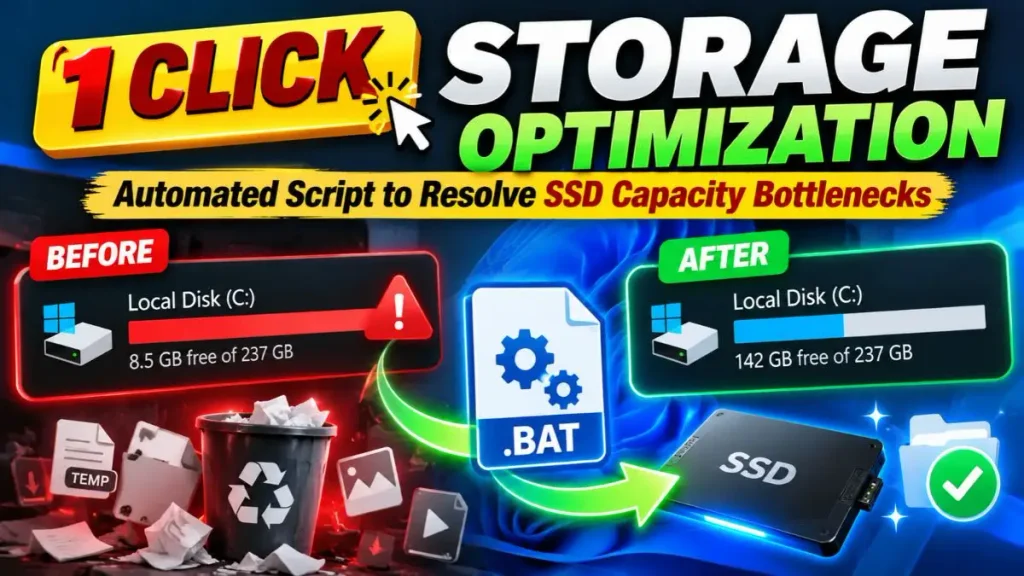
Analyzing the Storage Deficit: The Role of Hiberfil.sys
When auditing a workstation for storage inefficiencies, conventional cleaning utilities often overlook root-level system reservations. The primary factor consuming vast amounts of undocumented SSD capacity is hiberfil.sys.
Understanding System Resource Allocation The Windows operating system utilizes the Hibernation power state to dump the active contents of your Random Access Memory (RAM) into a non-volatile storage file (hiberfil.sys) located on the root of the C: Drive. This architecture ensures state-preservation during total power loss.
To facilitate this, the operating system forcefully reserves drive capacity directly proportional to your hardware specifications:
- 8GB RAM Workstations: Actively reserves approximately 6GB to 8GB of SSD storage.
- 16GB to 32GB RAM Workstations: Actively reserves anywhere from 12GB to over 24GB of critical storage space.
In modern IT environments utilizing NVMe SSDs and standard Sleep (S3) states, deep hibernation is largely obsolete. Retaining this feature results in severe storage mismanagement. The custom utility detailed below provides a programmed solution to disable this allocation and reclaim the storage block instantly.
Also Check This: 1-Click Windows Auto Repair Tool: Fix BSOD & Missing DLL Errors Without Formatting
Technical Breakdown of the Script Architecture
net session >nul 2>&1: This conditional logic acts as a security gate, verifying that the user has passed User Account Control (UAC) to run the file with elevated privileges. System-level modifications will natively fail without this clearance.powercfg.exe /hibernate off: This is the core executable command. It interfaces directly with the Windows Power Configuration utility to disable the hibernation state, which subsequently commands the OS to permanently delete thehiberfil.sysartifact from the root directory.powercfg /a: A diagnostic command that audits and displays the available Advanced Configuration and Power Interface (ACPI) sleep states supported by your current hardware architecture.
Also Check This: 1-Click Windows Recovery Repair Toolkit Script (22-in-1 Tool)
Secure Deployment: Downloading the Pre-Configured Executable
For IT professionals aiming for rapid deployment without manual compilation, a secure, pre-configured package is available.
1. Cryptographically Secure Download: Access the deployment package via the official repository link below. Executable .bat files are frequently flagged by endpoint security software due to heuristic analysis. To bypass these false positives, the utility is encrypted within a standard ZIP container.
2. Standard Extraction Protocol: Right-click the downloaded archive and initialize the “Extract All” protocol using native Windows compression tools or enterprise solutions like 7-Zip. Executing the utility directly from a compressed state will result in operational failure.
3. Utility Location: Navigate to the newly extracted directory to locate the StorageOptimizer.bat command-line tool.
Also Check This: 1-Click Windows Update Reset Script: Fix Stuck Updates Instantly
Execution Protocol: Implementing the Command-Line Utility
Deploying the optimization utility requires strict adherence to system administration protocols. Follow these operational guidelines to guarantee successful storage reclamation:
Step 1: Granting Elevated Privileges (Mandatory) Right-click the StorageOptimizer.bat executable and strictly select “Run as Administrator”. Bypassing this step restricts the script’s ability to modify root-level partition data, resulting in an immediate access denial.
Step 2: System Power Audit (Parameter 3) Upon initialization of the command-line interface, input ‘3’ and press Enter. This diagnostic step verifies the active sleep states on your workstation, confirming whether hibernation is currently monopolizing disk space.
Step 3: Executing Storage Reclamation (Parameter 1) Navigate back to the primary dashboard and input ‘1’. The script will interface with the Windows kernel to disable the hibernation protocol. Upon receiving the “SUCCESS” output, verify your C: Drive capacity via File Explorer; gigabytes of storage will be instantaneously reallocated for your use.
Step 4: Restoring System Defaults (Parameter 2) Enterprise environments require reversible configurations. Should your workflow necessitate deep hibernation states in the future, relaunch the utility and input ‘2’. This reinstates the default factory power configurations seamlessly.
Also Check This: 1-Click PC Speedup Script: Fix Slow Laptop & 100% Disk Usage Instantly
Final Assessment: Maximizing Workstation Efficiency
Relying on commercial software to manage disk capacity often introduces unnecessary background processes that drain computing power. By utilizing native command-line parameters, professionals can reclaim critical SSD storage, extending hardware lifecycle and maintaining a pristine operating environment.
What was the exact volume of storage reclaimed on your workstation post-deployment? Provide your data metrics in the discussion section below to assist our ongoing hardware performance research.
Disclaimer: The batch executables and command-line instructions detailed in this documentation have undergone rigorous testing in standard Windows environments. However, modifying system-level configurations should always be executed with care. Please ensure critical operational data is backed up before initiating any system-level scripts. The administrators of @TechWaleJha hold no liability for localized system errors. Always execute provided utilities with elevated administrative privileges.