
Friends, does your C drive always show a red indicator? You’ve deleted unnecessary videos, emptied the Recycle Bin, and even cleaned up Temp files, yet the C drive still won’t free up any space? If you’re annoyed by this “Low Disk Space” popup, you’re not alone in facing this problem. In fact, there’s an “invisible monster” hiding in your system that’s quietly eating up 8 GB to 16 GB of your valuable SSD space.
I’m your very own TechWaleJha, and in this article I’ll tell you about this hidden storage-killer. Also, I’ll give you a custom “Hibernate Space Saver” script that lets you reclaim GBs of storage with just one click—no complex CMD commands required. So let’s see how to run it.
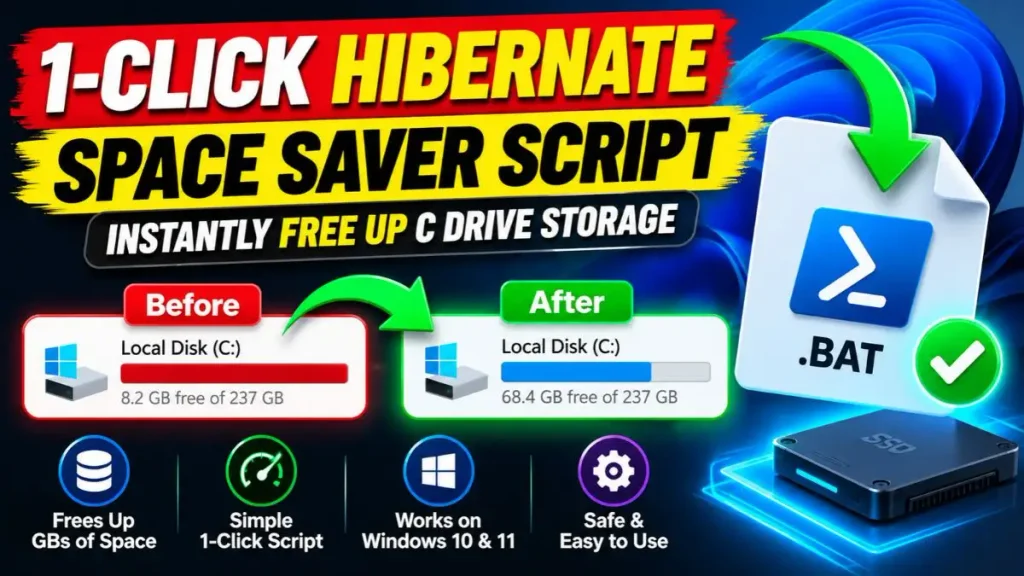
C Drive Space Full? The Hidden Culprit (Hiberfil.sys)
Whenever our PC’s storage gets full, we download third-party cleaner apps. But the real problem is a hidden system file named hiberfil.sys.
What is hiberfil.sys and why does it take up so much space?
The Windows OS has a feature called ‘Hibernation’. When you hibernate your PC, the system saves the entire contents of your RAM (Random Access Memory)—like open Chrome tabs and running apps—into this hiberfil.sys file on the C Drive. This way, when you turn on your PC, everything is exactly where you left it.
For this feature to work, Windows always reserves a space on the C Drive equal to your PC’s installed RAM (approximately 75% to 100%).
- If your PC has 8GB of RAM = ~6GB to 8GB of space blocked.
- If your PC has 16GB of RAM = ~12GB to 16GB of space blocked!
If you don’t use Fast Startup or Hibernation (which isn’t really necessary on today’s fast SSD laptops anyway), then wasting that many GBs is foolish. That’s why I’ve designed a Hibernate Space Saver batch script for you that automatically and safely disables this feature, so you don’t have to type in manual commands.
Also Check This: 1-Click Print Spooler Fix: How to Clear Stuck Print Queue in Windows 3 Seconds
Line-by-Line Code Breakdown (How It Works?):
- net session >nul 2>&1: This command silently checks whether you’ve granted the script admin rights or not. You need admin privileges to modify system files on the C drive.
- powercfg.exe /hibernate off: This is the masterstroke of this script! It uses the official Windows Power Configuration tool to instantly disable hibernation mode and automatically delete the hiberfil.sys file, freeing up storage.
- powercfg /a: This command checks which sleep states are currently active on the system.
How to Download and Extract the Script (ZIP File)
If you want to avoid the hassle of writing code, I have packed this tool in a safe, ready-to-use format.
- Secure Download: You can securely download this toolkit by clicking the official button below. Browsers block .bat files from downloading directly, so I’ve packaged it in a ZIP format to prevent any false antivirus warnings.
- Extraction Process: Right-click on the downloaded ZIP file and select “Extract All” (or Extract with WinRAR/7-Zip). Please note, running the file without extracting it will not allow the script to function properly.
- Locating the File: After extraction, open the new folder. There you will find a file named HibernateToggle.bat; this is our main tool.
How to Run the Hibernate Space Saver Tool
The interface of this tool is so simple that even a beginner can use it. To clear space in GBs, follow these steps carefully:
- Step 1: Admin Rights (Crucial Step): Right-click on the HibernateToggle.bat file and be sure to select “Run as Administrator.” If you simply double-click it, the script will close with a red error because system changes cannot be applied without admin rights.
- Step 2: Check Status (Option 3): When the script opens, a green/black CMD menu will appear. First, press “3” on your keyboard and press Enter. This will check whether Hibernate is currently ON or OFF on your PC.
- Step 3: Free Up Space (Option 1): If hibernation is on, go to the main menu and press ‘1’ and Enter. The script will run a command in the background and immediately delete the hiberfil.sys file from the C Drive. A “SUCCESS” message will appear on the screen. Open your My Computer and you’ll see that GBs of space have been freed up!
- Step 4: Revert Changes (Option 2): I always create scripts that are completely reversible. If you ever want to restore the Hibernate feature for your laptop in the future, just run this script again and press Option ‘2’. Everything will go back to normal.
Conclusion: Time to Claim Your Free Space!
So friends, that was the most tech-savvy and professional way to reclaim the space being stolen from your C drive without installing any useless CCleaner or software. Keeping your C drive free increases both the lifespan and speed of your PC.
How many GBs did you free from your PC using this tool? 8GB or 16GB? Be sure to let me know in the comments below!
Disclaimer: All the Batch (.bat) scripts and commands provided in this article have been personally tested by me and are completely safe. However, before running any system-level or CMD command, be sure to save your work. TechWaleJha will not be held responsible for any unexpected issues. Please run the script as an administrator only as per the steps mentioned.