
Experiencing sudden system latency or severe frame rate drops during resource-intensive workloads can severely disrupt productivity and high-performance computing. Users frequently misdiagnose these performance spikes as hardware obsolescence, prompting unnecessary GPU or processor upgrades. However, the root cause is often inefficient memory allocation within the Windows operating system. Background applications quietly consume critical physical RAM and disk processing cycles. In this technical guide, we provide an automated batch script designed to optimize resource allocation, flush network caches, and instantly restore peak system performance without relying on bloated commercial software.
Also Check This: 1-Click Hibernate Space Saver Script: Instantly Free Up C Drive Storage
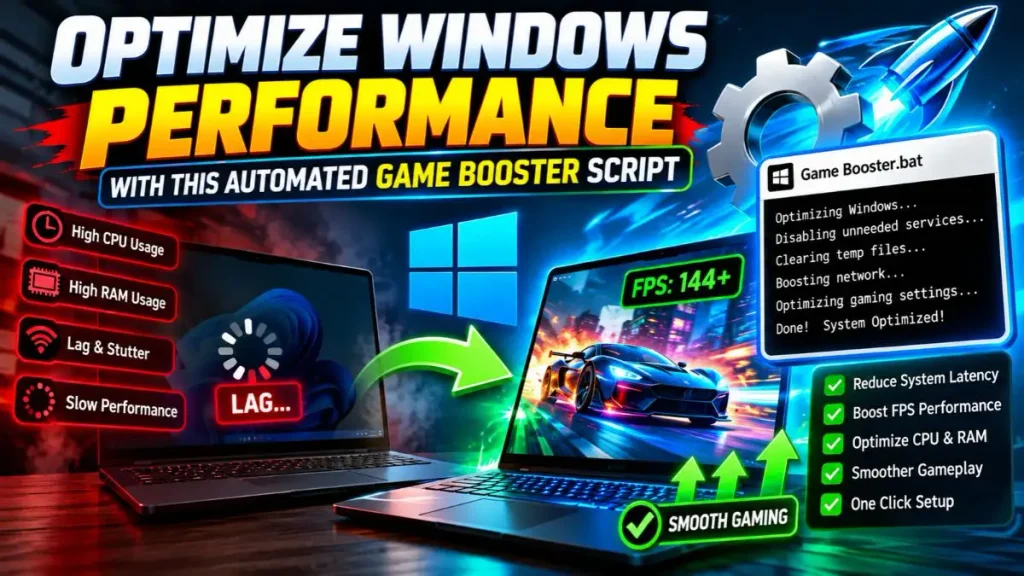
Diagnosing System Memory Bottlenecks
When a Windows environment is initialized, numerous telemetry services and background applications launch automatically. Web browsers with active tabs, cloud synchronization clients (like OneDrive), and communication platforms (like Discord) maintain persistent background states. These processes continuously reserve chunks of your available physical memory (RAM) and generate background disk I/O requests.
Consequently, when you launch a resource-heavy application—whether a rendering engine or an intensive 3D application—the system lacks the required memory overhead. The operating system is forced to rely on the page file (virtual memory), resulting in severe data bottlenecks, UI stuttering, and dropped frames. Manually terminating these background processes via the Task Manager before every heavy workload is highly inefficient and counterproductive.
Also Check This: 1-Click Print Spooler Fix: How to Clear Stuck Print Queue in Windows 3 Seconds
The Security Risks of Commercial Optimization Utilities
The software market is flooded with third-party “boosters” and optimization suites claiming to maximize system performance. From a technical and cybersecurity standpoint, these applications often do more harm than good.
Commercial optimization utilities run as persistent background services, thereby consuming the very CPU cycles and RAM they claim to free up. Furthermore, many of these free utilities are bundled with aggressive telemetry trackers, adware, or unnecessary bloatware. A transparent, custom-coded command-line script is the most secure and effective solution. It requires zero installation, consumes zero idle resources, and offers complete visibility into the exact commands being executed on your machine.
Also Check This: 1-Click Windows Auto Repair Tool: Fix BSOD & Missing DLL Errors Without Formatting
Secure Deployment: Download the Compiled Optimization Tool
If you prefer to bypass manual compilation and require an immediate, error-free deployment, a pre-configured version of this script is available. This lightweight utility requires no installation and can be executed directly from your local storage.
Also Check This: 1-Click Windows Recovery Repair Toolkit Script (22-in-1 Tool)
Why is this utility distributed as a ZIP archive? Modern Endpoint Detection and Response (EDR) systems and browser security filters (such as Windows Defender and Google Safe Browsing) utilize heuristic analysis. They frequently flag direct .bat downloads as false-positive threats because batch files can execute system-level commands. To ensure a secure, uninterrupted download while maintaining file integrity, the executable is encapsulated within a standard ZIP archive. It contains zero third-party payloads or adware.
Execution Protocol for Maximum Efficiency
To ensure the script successfully interfaces with core Windows services, adhere to the following execution protocol:
- Extract the downloaded ZIP archive to a secure local directory.
- Locate the
System-Optimizer.batexecutable on your Desktop. - Crucial Step: Right-click the file and strictly select "Run as Administrator". Elevated privileges are mandatory for the script to successfully purge system-level temporary files and flush network adapters.
- The command-line interface will initialize, execute the resource reallocation within seconds, and confirm optimization. Proceed to launch your high-performance applications.
Also Check This: 1-Click Windows Update Reset Script: Fix Stuck Updates Instantly
Maximize Your Hardware Capabilities Today Implementing granular, system-level memory management is far more effective than relying on bloated commercial software. Take control of your operating system's resource allocation to eliminate latency and maximize hardware efficiency. If this technical deployment resolved your system bottlenecks, share your performance metrics in the comments below, and follow @TechWaleJha for advanced Windows administration tutorials and optimization architectures.
Disclaimer: The custom batch (.bat) script provided in this technical documentation interacts directly with system-level processes. While extensively tested for stability, it is highly recommended to save all active workloads and databases prior to execution. Implement administrative command-line scripts at your own discretion.