
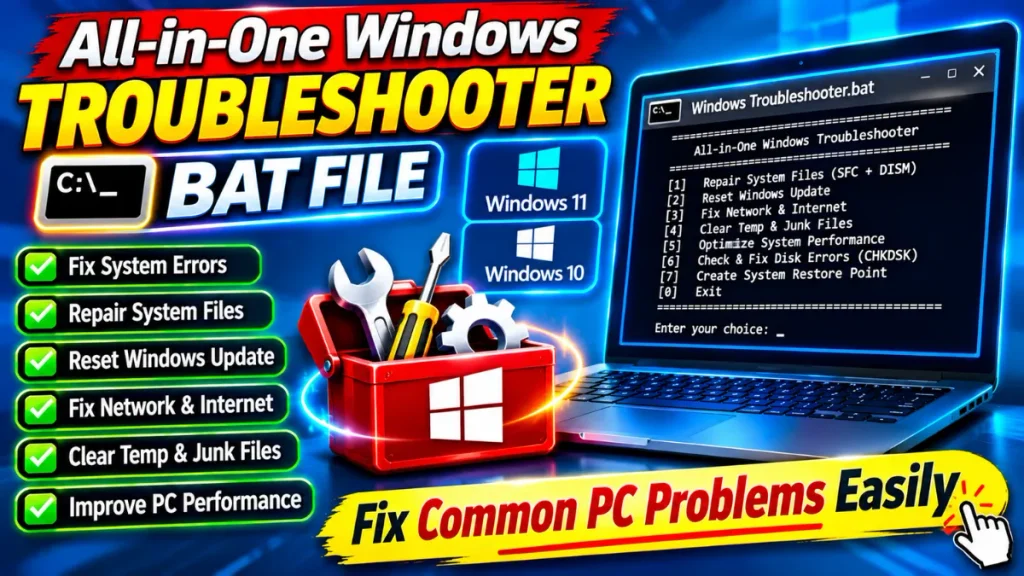
Are you facing internet connectivity issues, a slow computer, audio problems, printer errors, or Windows system errors? Instead of searching for different solutions every time, you can use this All-in-One Windows Troubleshooter BAT File.
This free Windows utility brings multiple troubleshooting options into one simple menu. Just run the BAT file, select the problem you want to troubleshoot, and let Windows built-in commands do the work.
The All-in-One Windows Troubleshooter is a simple batch script designed for Windows 10 and Windows 11 users.
It combines several useful Windows commands into one easy-to-use tool. Whether you want to clean temporary files, reset network settings, check battery health, or repair corrupted system files, this utility provides convenient access to these functions.
You don’t need to install additional software.
Why Is This Tool Important?
Windows users regularly encounter common problems that can affect their daily computer experience.
For example:
- Internet stops working unexpectedly.
- Temporary files consume unnecessary storage.
- Windows system files become corrupted.
- Printer services stop responding.
- Audio services stop working.
- You want to check your laptop’s battery health.
Normally, you need to remember different commands to troubleshoot these issues. This tool brings many of those commands together in one place, saving time and effort.
Key Features
Here are the main features included in this free BAT file:
- Internet & Network Repair: Flush DNS, renew IP configuration, and reset Winsock and TCP/IP.
- Temporary File Cleaner: Attempts to remove unnecessary temporary files.
- Windows System Repair: Runs DISM RestoreHealth and SFC Scannow.
- Battery Health Report: Generates an HTML battery report.
- Disk Health Checker: Displays available physical disk health information.
- Audio Problem Fixer: Restarts Windows audio services.
- Printer Problem Fixer: Restarts the Print Spooler service.
- Network Information: Displays complete network configuration details.
- Windows Troubleshooting: Opens Windows troubleshooting settings.
- DNS Cache Cleaner: Clears the DNS resolver cache.
- Windows Explorer Restart: Restarts the Windows Explorer process.
- System Information: Displays detailed Windows system information.
How to Create the BAT File Manually (Without Downloading)
If you don’t want to download the ZIP package, you can create the BAT file yourself by following these steps.
- Step 1: Open Notepad on your Windows computer.
- Step 2: Copy the complete code provided below.
- Step 3: Paste the code into Notepad.
- Step 4: Click File → Save As.
- Step 5: Enter the file name:
Windows-Troubleshooter.bat - Step 6: Change Save as type to All Files.
- Step 7: Click Save.
Your BAT file is now ready!
Complete All-in-One Windows Troubleshooter BAT Code
Copy the following complete code and paste it into Notepad.
@echo off
setlocal EnableExtensions
title All-in-One Windows Troubleshooter
color 0B
mode con cols=85 lines=35

:: Check Windows version and administrator privileges
net session >nul 2>&1
if %errorlevel% neq 0 (
    echo.
    echo  Administrator permission is required.
    echo  Requesting administrator access...
    powershell -NoProfile -Command "Start-Process -FilePath '%~f0' -Verb RunAs"
    exit /b
)

:MENU
cls
echo.
echo  ============================================================
echo                  WINDOWS TROUBLESHOOTER
echo  ============================================================
echo.
echo       [1]  Fix Internet and Network Problems
echo       [2]  Clean Temporary Files
echo       [3]  Repair Windows System Files (SFC + DISM)
echo       [4]  Generate Battery Health Report
echo       [5]  Check Disk Health
echo       [6]  Restart Windows Audio Services
echo       [7]  Fix Printer Problems
echo       [8]  Show Network Information
echo       [9]  Open Windows Troubleshooting Settings
echo       [10] Flush DNS Cache
echo       [11] Restart Windows Explorer
echo       [12] Show System Information
echo.
echo       [0]  Exit
echo.
echo  ============================================================
set /p choice=  Select an option:

if "%choice%"=="1" goto NETWORK
if "%choice%"=="2" goto CLEAN
if "%choice%"=="3" goto REPAIR
if "%choice%"=="4" goto BATTERY
if "%choice%"=="5" goto DISK
if "%choice%"=="6" goto AUDIO
if "%choice%"=="7" goto PRINTER
if "%choice%"=="8" goto NETINFO
if "%choice%"=="9" goto TROUBLE
if "%choice%"=="10" goto DNS
if "%choice%"=="11" goto EXPLORER
if "%choice%"=="12" goto SYSINFO
if "%choice%"=="0" exit /b

echo.
echo Invalid selection!
timeout /t 2 >nul
goto MENU

:NETWORK
cls
echo Fixing Internet and Network Problems...
echo.
ipconfig /flushdns
ipconfig /release
ipconfig /renew
netsh winsock reset
netsh int ip reset
echo.
echo Network repair commands completed.
echo A restart may be required.
pause
goto MENU

:CLEAN
cls
echo Cleaning temporary files...
echo.
del /f /s /q "%TEMP%\*" >nul 2>&1
for /d %%D in ("%TEMP%\*") do rd /s /q "%%D" >nul 2>&1
del /f /s /q "%WINDIR%\Temp\*" >nul 2>&1
for /d %%D in ("%WINDIR%\Temp\*") do rd /s /q "%%D" >nul 2>&1
echo.
echo Temporary file cleanup completed.
echo Files currently in use may remain.
pause
goto MENU

:REPAIR
cls
echo Windows System Repair
echo.
echo Running DISM RestoreHealth...
DISM /Online /Cleanup-Image /RestoreHealth
echo.
echo Running System File Checker...
sfc /scannow
echo.
echo System repair scan completed.
pause
goto MENU

:BATTERY
cls
echo Generating Battery Health Report...
echo.
powercfg /batteryreport /output "%USERPROFILE%\Desktop\Battery-Health-Report.html"
echo.
echo Report saved to your Desktop.
pause
goto MENU

:DISK
cls
echo Checking Disk Health...
echo.
powershell -NoProfile -Command "Get-PhysicalDisk | Select-Object FriendlyName, MediaType, HealthStatus, OperationalStatus | Format-Table -AutoSize"
echo.
echo Basic disk health information displayed.
echo This check depends on drive and controller support.
pause
goto MENU

:AUDIO
cls
echo Restarting Windows Audio Services...
echo.
net stop Audiosrv /y
net start AudioEndpointBuilder
net start Audiosrv
echo.
echo Audio service restart commands completed.
pause
goto MENU

:PRINTER
cls
echo Restarting Print Spooler...
echo.
net stop spooler
net start spooler
echo.
echo Print Spooler restart completed.
echo Existing print jobs have not been intentionally deleted.
pause
goto MENU

:NETINFO
cls
echo Network Information
echo.
ipconfig /all
echo.
pause
goto MENU

:TROUBLE
cls
echo Opening Windows Troubleshooting Settings...
echo.
start ms-settings:troubleshoot
pause
goto MENU

:DNS
cls
echo Flushing DNS Cache...
echo.
ipconfig /flushdns
echo.
echo DNS cache cleared.
pause
goto MENU

:EXPLORER
cls
echo Restarting Windows Explorer...
echo.
taskkill /f /im explorer.exe
start explorer.exe
echo.
echo Windows Explorer restarted.
pause
goto MENU

:SYSINFO
cls
echo System Information
echo.
systeminfo
echo.
pause
goto MENUDownload All-in-One Windows Troubleshooter BAT File
You can get the ready-made ZIP package containing the BAT script.
File Details:
- File Name: Windows-Troubleshooter.bat
- Package: ZIP
- Compatibility: Windows 10 and Windows 11
- License: Free to use
How to Install and Run the Downloaded ZIP File
If you download the ready-made ZIP package, follow these instructions:
Step 1: Download the ZIP File
Download the All-in-One Windows Troubleshooter ZIP package using the download link above.
Step 2: Extract the ZIP File
- Open your Downloads folder.
- Right-click the downloaded ZIP file.
- Select Extract All.
- Choose a destination folder.
- Click Extract.
Step 3: Locate the BAT File
- Open the extracted folder. You will find:
Windows-Troubleshooter.bat
Step 4: Run as Administrator
- Right-click the BAT file and select Run as administrator.
If Windows displays a User Account Control prompt, click Yes if you trust the script.
Step 5: Select Your Troubleshooting Option
A command prompt window will open with a list of troubleshooting options.
Enter the number corresponding to the problem you want to troubleshoot and press Enter.
That's it! The selected troubleshooting task will start.
Important Safety Information
- Some network repair commands may temporarily disconnect your internet.
- DISM and SFC scans can take several minutes or longer.
- Temporary files currently in use may not be deleted.
- Disk health information depends on hardware and controller support.
- Save your important work and create a backup before performing system repairs.
- This tool uses built-in Windows commands and cannot guarantee a fix for every hardware or software issue.
Conclusion
The All-in-One Windows Troubleshooter BAT File is a useful utility for Windows 10 and Windows 11 users who want quick access to common PC troubleshooting commands.
Instead of manually entering multiple commands, you can use one simple menu to clean temporary files, repair system files, troubleshoot network problems, generate battery reports, and perform other useful tasks.
If you regularly troubleshoot Windows computers, this free utility is worth keeping in your toolkit.